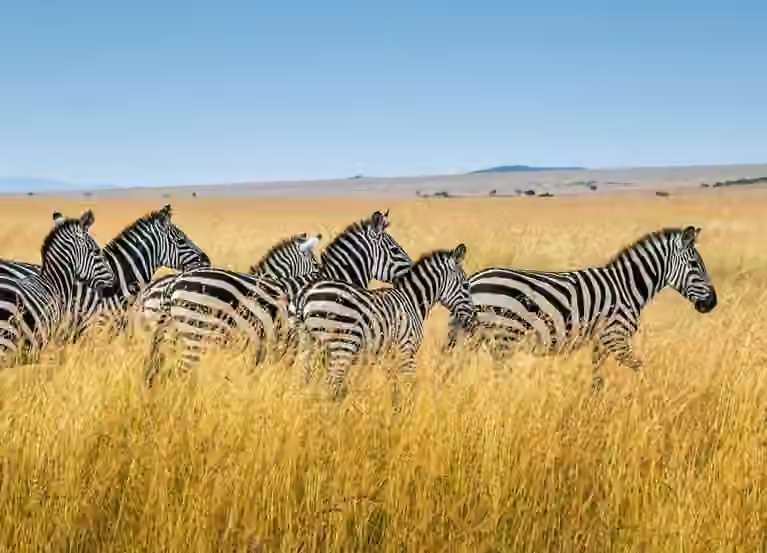
Images can bring a website to life. They are a crucial piece of the content puzzle, and are extremely impactful when communicating a message. They also happen to dominate web traffic as the single largest data download for most web browsers, so using them wisely is of the utmost importance.
 Some guy holding a polaroid photo of some guy – now that’s impactful!
We all know that a picture is worth a thousand words, however, if unoptimised, a picture is also worth a thousand wasted kilobytes (and a significant hit to page speed). Optimising images is a tedious process and, as a developer, I for one will choose setting up an automated process over repeated manual labour any day of the week.
 Unoptimised JPG (376 KB)
 Optimised AVIF (86 KB)
The images above look identical, however, the unoptimised version is 376 KB while the optimised version is 86 KB. With 10 such unoptimised images on a page, that would add up to 3.6 MB in images alone (versus 860 KB)!
While the difference is practically invisible to the naked eye, this matters because smaller images load faster on mobile connections, use less data, and cause the page to become interactive sooner.
So let’s explore what the actual difference is, and how you can take advantage of image transformation services such as Small Pics, which this site uses.
Image Optimisation #
There are two main ways of optimising images for your site:
- Resize to appropriate dimensions.
- Compress by removing extra data images don’t really need.
1. Resizing Images #
Resizing images is not as straightforward as it used to be. With responsive design came layouts that adapt to the viewport, and with responsive images came the ability for browsers to choose image sources based on viewport dimensions, screen resolution, and device pixel-ratio. This means that what once used to be a simple <img src="frog.jpg"> element, now looks more like this:
<img
    src="frog-768x768.jpg"
    srcset="frog-768x768.jpg 768w, frog-1536x1536.jpg 1536w"
    sizes="(max-width: 767px) 100vw, 768px"
/>
Or, if the browser should choose alternative versions of an image based on the layout then the <picture> element may be more appropriate:
<picture>
    <source media="(min-width: 970px)" srcset="turtle-landscape.jpg" />
    <img src="turtle-portrait.jpg" />
</picture>
You can see how the landscape image is swapped for a portrait one when the browser window is less than 1024 pixels wide (try it out!).
 Change the browser window width to see the image swap.
2. Compressing Images #
How much an image can be compressed, and the effect of the compression, is determined primarily by the file format used. Most people will be familiar with the JPEG image format, which has been around since 1992 and is still widely used. However, there are more modern, more efficient image formats for the web, most notably AVIF, WebP. These formats compress well and maintain their quality.
Images can also be compressed using a quality parameter from 1 to 100. Lower values produce smaller files, but at the cost of image quality. The right setting depends on your priorities. This site uses 65, which offers a good balance between quality and file size.
 Quality: 100 (336 KB)
 Quality: 65 (31 KB)
 Quality: 10 (6 KB)
You might notice a subtle difference in sharpness between the images with quality 100 and 65. The difference in file size is dramatic. But as the quality gets into the lower numbers, loss in quality is very perceptible.
This article provides a more detailed explanation of image compression and how an image CDN works.
Image Transform Services #
Image transform services are the answer to automating image optimisation. In addition to resizing and compressing images, most image transform services select the best image format based on the capabilities of the browser and cache the resulting image in a CDN, making them much faster to load for subsequent visits.
I’ve used a bunch of image transform services in my day, from Imgix to Cloudinary to Cloudflare Images. My current service of choice is Small Pics, and I’ll explain why below.
Why Small Pics #
Small Pics does everything I want from an image transform service: it resizes, compresses, and caches images in a global edge CDN. It also allows custom domains, meaning that transformed images on this site are served from the subdomain images.putyourlightson.com, which is just a CNAME record that points to putyourlightson.smallpics.io. And all this at the extremely fair starting price of $9 per month (for 2,500 origin images). And if you happen to go over your plan’s limits, Small Pics offers $3 and $5 for additional transforms and origins, respectively, without ever suspending the service to your account.
The other thing that really appeals to me about Small Pics is that it was created by a small team of engineers, to scratch their own itch. It came out of agency work and e‑commerce requirements, making it, unsurprisingly, an especially good option for agencies and e‑commerce sites.
Why Not Something Else #
Imgix used to be my image transform service of choice. It works exceptionally well. My main issue with it is that, like so many other SaaS services, its pricing has become credit-based, making it somewhat unpredictable. I get the appeal of usage-based pricing, but in my case I just want a flat rate. Imgix’s pricing has also increased dramatically over the years, and the starter plan now costs $25 per month.
Cloudinary used to power image transforms on this site. It’s pricing has also transitioned to credit-based, and its cheapest paid plan now starts at $89 per month.
Both of the services above now include AI features (of course they do) – features that I neither use nor want. Perhaps this is the reason for the hefty pricing? In fairness though, some use-cases may benefit from AI features, and they also include video optimisation, face detection, and other more advanced features.
Cloudflare Images is perhaps the most competitively priced image transform service currently available. The first 5,000 unique transformations per month are free, and you can get an additional 1,000 unique transformations for just 50 cents. Paid plans are a bit tricky to understand, but are likely to come out much less than any of the other services mentioned here. If you already use Cloudflare then integrating Cloudflare Images with your site is very straightforward. If you’re not then it can be more complicated, and may not be worth the vendor lock-in.
You’ll find a much more thorough pricing and feature comparison of the image transform services above, and others, in this article.
Small Pics Setup #
Integrating Small Pics with your site is very straightforward, thanks to its simple API. It even has a built-in Imgix compatibility mode, in case you’re already using Imgix on your site.
Sample API Usage #
Once you’ve set up an image source in the Small Pics dashboard, using the API is as simple as appending query params to image URLs. Below is a small sample of the kinds of things you can do.
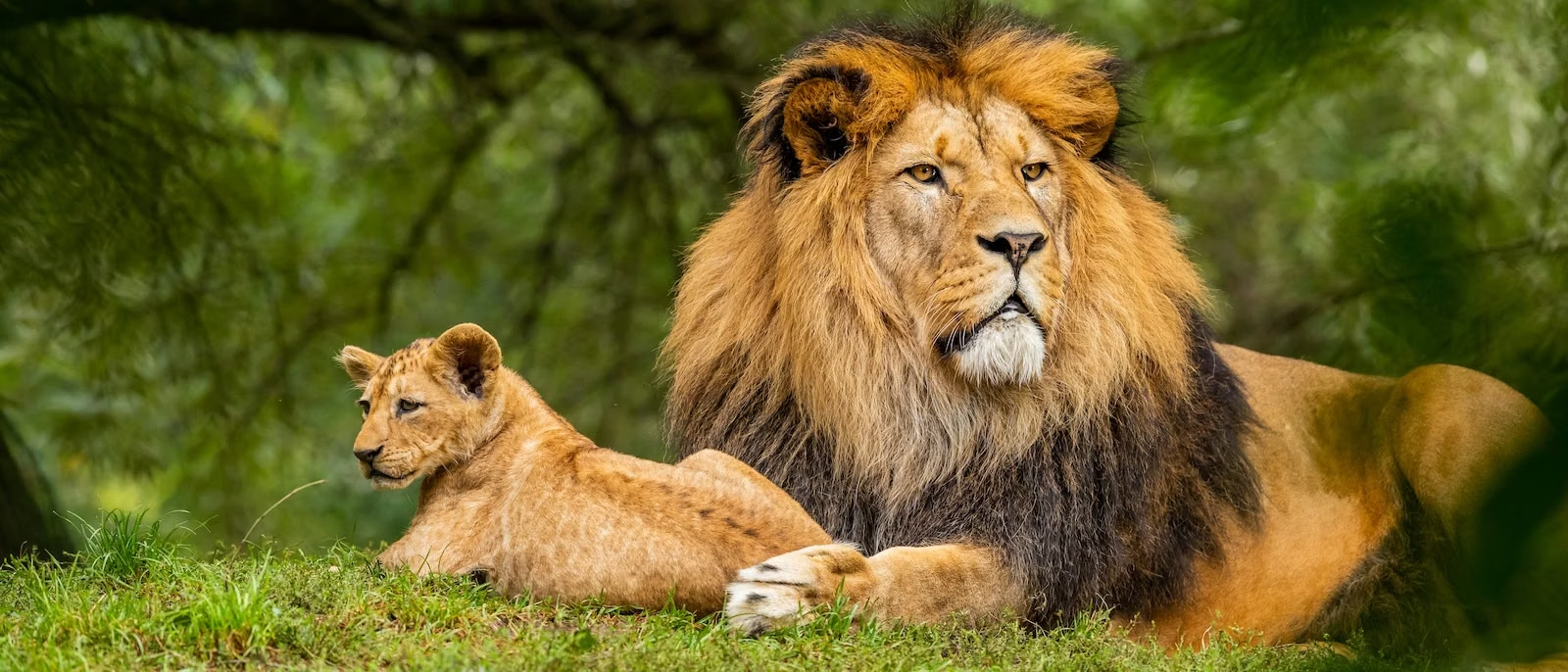
Set the aspect ratio to 21:9:
<img src="lions.jpg?ar=21:9" />
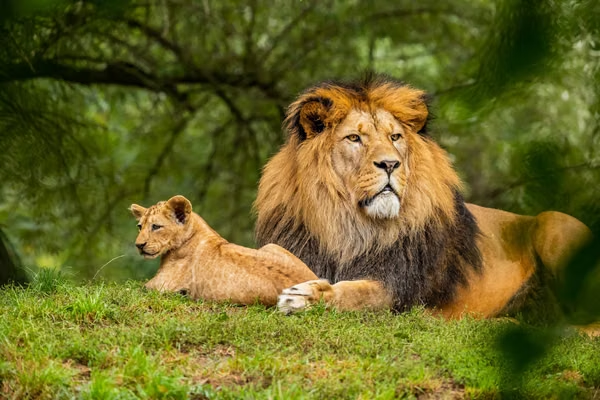
Set the width to 600px:
<img src="lions.jpg?w=600" />
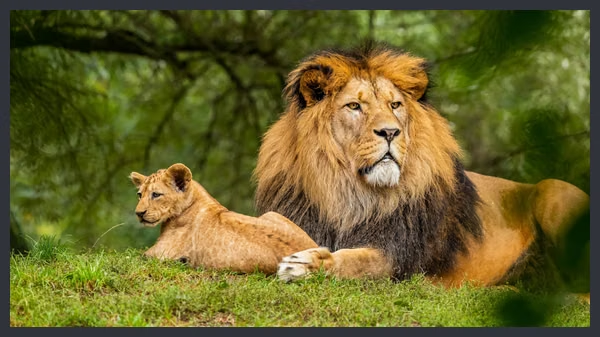
Combine aspect ratio, width, and a border of 10px with the colour #30343A:
<img src="lions.jpg?ar=16:9&w=600&border=10,30343A,overlay" />
Add a watermark:
<img src="lions.jpg?...&mark=logo.svg&markw=160&markalpha=50" />

Client Libraries #
As we’ve seen, Small Pics can be set up with just a few query params. To simplify integration with PHP applications, there is an official PHP client library for generating URLs programmatically, as well as a Craft CMS plugin, which this site uses.
This is how it can be used in Twig:
{% set image = craft.smallpics.transformImage(asset, {
    ar: 16/9, w: 600, border: [10, '30343A', 'overlay']
}) %}
Benchmarking #
Resizing, compressing and caching images is the baseline. But it must be performant, too. I’ve been told that the transform logic Small Pics uses is written in Rust, and so I decided to put it to the test.
I tested transforming this article’s cover image and measured the response time for each image transform service. The measurements are for cold transforms from JPEG to AVIF. In other words, transforms that have never before been performed by the transform service.

Input: JPEG file with size 433 KB and dimensions 2880×1920 pixels.
Output: AVIF file with width 1600 pixels and quality 65.
Imgix is clearly ahead of the pack when it comes to response times. Small Pics and Cloudinary are consistently sub-second, whereas Cloudflare Images averages out at around one second.
I also benchmarked loading 10 images concurrently, which is a more realistic scenario. The results are similar, with Imgix holding its own, and Cloudflare Images suffering.
What’s interesting is that the compressed file size produced by each service varies wildly, even though the quality was always explicitly set to 65. This likely comes down to each service using different encoder settings and optimisation techniques.
| Image Transform Service | Compressed file size |
|---|---|
| Small Pics | 68 KB |
| Imgix | 56 KB |
| Cloudinary | 26 KB |
| Cloudflare Images | 40 KB |
The fact that the image produced by Small Pics is largest intuitively tells me that it produces higher quality images than the others. So this clearly isn’t a perfect apples-to-apples comparison.
Conclusion #
This page loads around 1 MB of compressed images (on a retina display). That’s not a small amount, but I’d argue that it’s the high quality imagery that brings this article to life. And it ends up being 10x less data for the browser to download than if the images were unoptimised. That’s a difference automating for!